
Planning methods
How to Turn Google Maps Saves into a Day-by-Day Itinerary
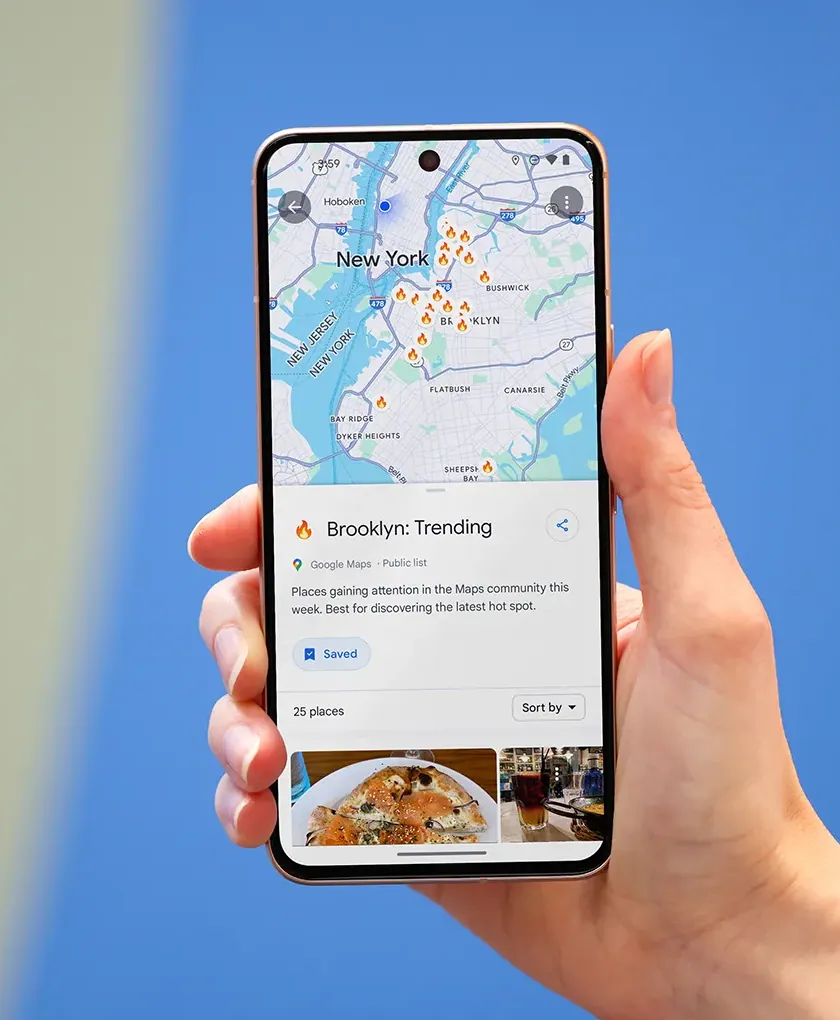
A Google Maps list is excellent at remembering possibilities. It is less clear about which places belong on the same day, how long the transfer takes, or where you will sleep. The next step is to turn pins into choices.
By the Huvver team · Reviewed October 20, 2026
The short answer
Triage saved places into must-do, optional, and skip; choose your overnight bases; group nearby places by day; order stops around opening times and travel; then keep overflow in an Ideas list. On iPhone, Huvver’s share extension can add individual Google Maps places to a trip or day, but it does not bulk-import a complete Google Maps list.
Clean the list before assigning dates
Open the saved list and remove duplicates, closed places, and vague area pins. Add a short reason to visit each remaining place. Google Maps supports lists, notes, and sharing, so the research does not need to leave Maps immediately. Mark only a few true priorities per day; a long must-do list is an unplanned itinerary with a deadline.[1]
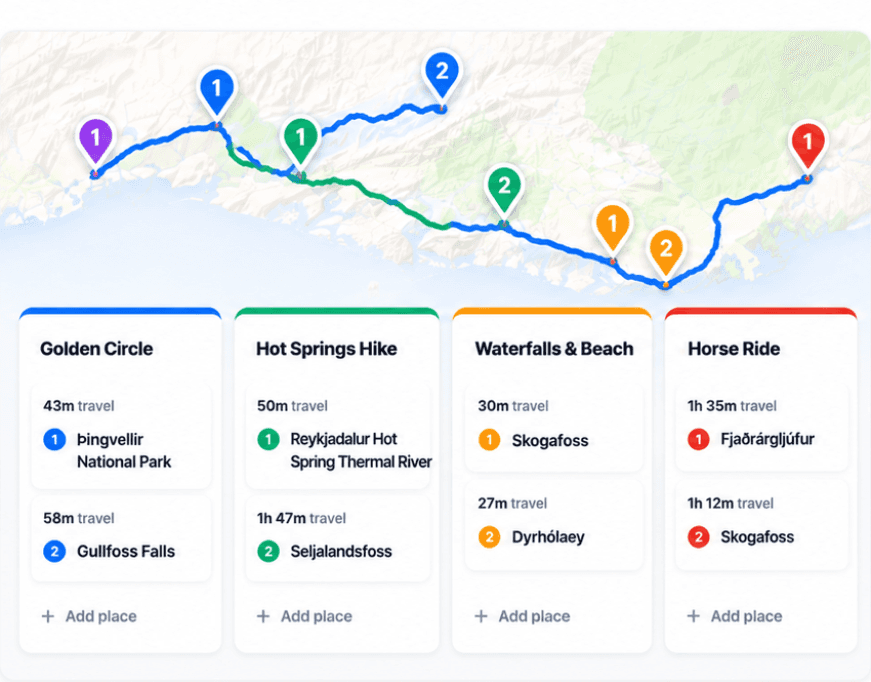
Pick the nights next. A cluster near one hotel may be a practical half day; the same cluster from a distant hotel may be a tiring excursion. Draw the route between overnight bases before filling in attractions. That reveals the transfer days and the number of usable hours.
Make the day sequence real
For each day, choose a start, an end, and a small number of stops. Check whether the sequence respects opening days, timed tickets, meals, and transport changes. Leave a buffer around any booking that would be expensive to miss. If two stops are far apart, consider moving one to another day or leaving it optional rather than pretending the map will compress the distance.
Google Maps can keep the research list while a shared sheet or planner holds the day order. Huvver puts days, Ideas, stays, and travel legs beside a map. On iPhone, its share extension accepts an individual supported Apple Maps or Google Maps place link. Sign in first, choose an existing editable trip and a day or Ideas, then confirm the location and name. Keep a connection available to resolve and save the place. There is no bulk Google Maps list import.[1][2][3]
Public Huvver guides are free to preview. Creating your own trip or copying a template requires an annual owner subscription; invited editors can add places to a trip shared with them without buying their own plan.[4]
- Choose the trip dates and overnight bases before assigning every saved pin.
- Move must-do places into dated days; keep the uncertain stops in Ideas.
- On iPhone, sign in to Huvver and stay connected. Share one Google Maps place to Huvver, choose an editable trip and day or Ideas, check the location and name, then save.
- Reorder each day on the map and remove any stop that makes the route or opening hours unrealistic.
Finish with a route and reality check
Walk through the plan as if it were tomorrow: where is breakfast, where are the bags, how do you reach the first stop, and where do you finish? Check the exact date against official venue and transport information. Save the address or official booking link for any stop whose entrance is easy to confuse with its map pin.
Keep the Google Maps list as a discovery archive if that helps. You do not need to delete a useful source list after making an itinerary. The day plan becomes the current decision; the pin collection stays available for alternatives.
Explore a real trip
See day-by-day routes with maps, notes, and editable Huvver templates.
Sources and review notes
Outside product details are linked to first-party pages. Advice and recommendations are Huvver’s editorial judgment; this article does not imply hands-on testing unless it says so.